
Prevent idle sleep
Holds the system awake so long-running work is never interrupted, however long it takes.
macOS menu bar utility
Builds compile, exports render, backups upload, remote sessions hold. MacNoSleep keeps your Mac running until the work is done, then gets out of the way.
Powered by Lathe.live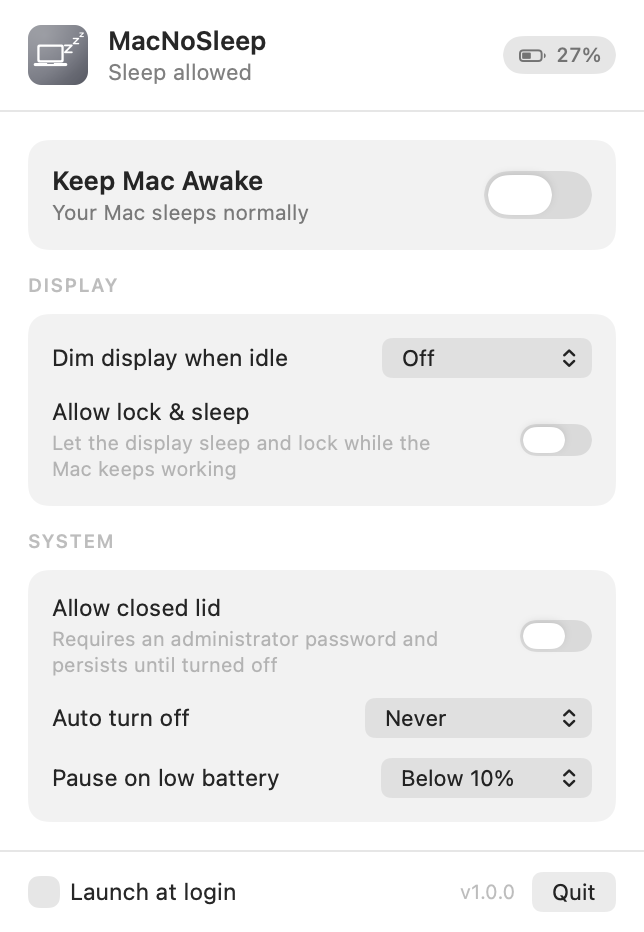
The menu bar icon carries the state, so you never have to open anything to know whether a session is running. It tints itself to match light menu bars, dark menu bars and highlights.
Features
Everything is one click away in the menu bar. There is no preferences window, no dock icon and nothing to configure before it works.
Holds the system awake so long-running work is never interrupted, however long it takes.
Let the display sleep and lock normally while the Mac keeps working underneath. Useful when you walk away.
Drop the backlight after 1, 5, 15 or 30 minutes without input, to any level you choose. It comes straight back on the next keypress.
Keep a laptop reachable for remote sessions and transfers with the lid shut.
End the session by itself after anywhere from 30 minutes to 12 hours, with the remaining time on screen.
Pauses automatically when you are on battery and drop below your chosen floor, then resumes when you plug back in.
Registers as a proper login item so your controls are ready as soon as you sign in.
A Mac that was awake when you quit comes back awake, with the same settings.
How it works
Anything that needs the machine to stay up.
One switch in the menu bar. Set an auto-off timer if you want a hard stop.
No babysitting power settings, and nothing left permanently changed afterwards.
Version 1.0.0 · Universal binary · Requires macOS 14 Sonoma or later
Download for MacSigned with a Developer ID certificate and notarised by Apple, so it opens with a normal double-click. Open the disk image and drag MacNoSleep to your Applications folder.
FAQ
Almost nothing. Keeping the Mac awake uses the power assertions macOS provides for exactly
this purpose, the same mechanism a video call or a long copy uses. They disappear the
moment you turn the session off or quit the app. You can see them yourself by running
pmset -g assertions in Terminal.
Closed-lid operation is the one exception, and it is described below.
Running with the lid shut is not something an ordinary app is allowed to do. It maps to a system-wide power setting, so MacNoSleep has to ask macOS for administrator approval to change it.
Two things follow from that. The setting is global and survives quitting and rebooting;
MacNoSleep turns it back off when you quit, but if the app is force-killed you can clear
it yourself with sudo pmset -a disablesleep 0. And a closed laptop with no
external display has nowhere to put its heat, so a stand or an external monitor is a good
idea for long sessions.
Not without warning. If you are on battery power and the charge falls to your chosen floor — 5, 10, 15 or 20 percent — the session pauses on its own and the menu bar icon changes to a warning. It picks back up when you plug in or charge above the threshold. You can also turn the safety net off entirely if you would rather decide for yourself.
No. There is no analytics, no telemetry, no accounts and no network access of any kind. Your settings live in a preferences file on your own Mac. See the privacy policy, which is short.
Yes. The app is signed with a Developer ID certificate, built with the hardened
runtime, and the disk image has been notarised by Apple and stapled, so it opens with an
ordinary double-click and keeps working offline. You can check for yourself with
spctl -a -vv /Applications/MacNoSleep.app, which should report
source=Notarized Developer ID.
Quit it from the menu bar and drag the app to the Trash. If you had turned on closed-lid
mode, run sudo pmset -a disablesleep 0 first so that setting goes back to
normal.